
If your VPN not working on Netflix is giving you the dreaded proxy error, you’re not alone, and it’s one of the most frustrating roadblocks a streamer can face.
Imagine this: It’s Friday night. You’re traveling abroad, or maybe you just learned that a friend recommended a fantastic new show that’s only available on the US Netflix library. You fire up your trusted VPN, connect to a server in your desired country, log into Netflix, and… BAM. You get the message: “You seem to be using an unblocker or proxy. Please turn off any of these services and try again.” error message (Code M7111-1331-5059).
Suddenly, your evening of cinematic escape is ruined. You’ve paid for both Netflix and a premium VPN service, yet you’re blocked. This isn’t just an inconvenience; it feels like your streaming freedom—the very reason you bought the VPN—has been cancelled.
The great news? This roadblock is absolutely fixable. This guide breaks down exactly why this issue occurs and gives you the proven steps to regain your streaming freedom. Let’s start with the fastest solutions to get you streaming immediately.
The Quick Fix List: 3 Ways to Stream Now
If you’re staring at the block screen right now, try these three simple and fast steps, often resolving the issue instantly:
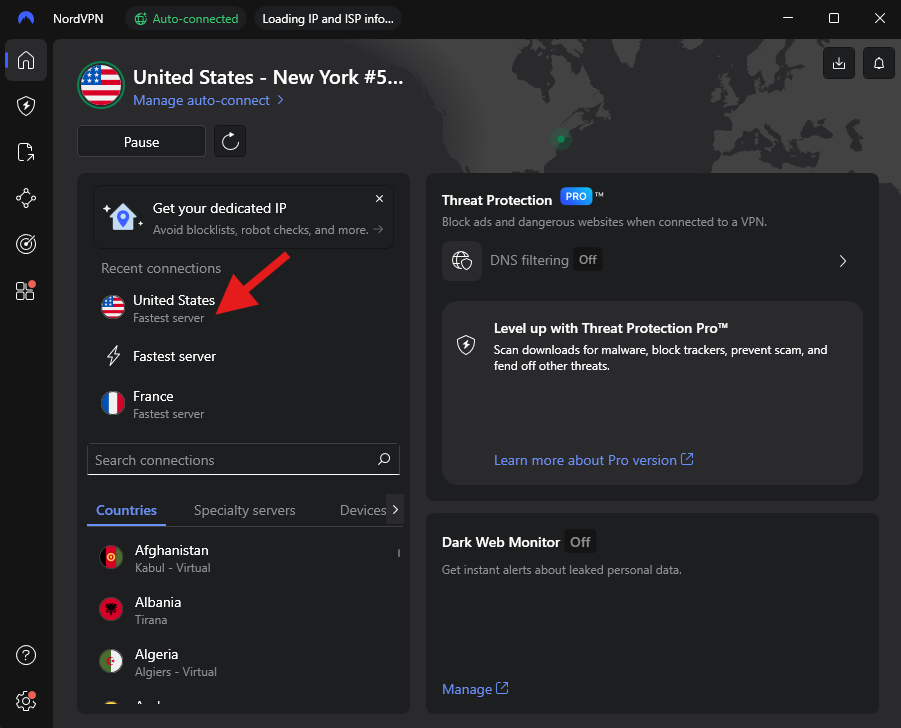
1. Switch to a Different Server: The most common fix. Netflix blocks individual server IP addresses. Disconnect and choose a different server in the same target country (e.g., if “US-New York 1” is blocked, try “US-Miami 2”).
2. The reason this basic step is so critical when your VPN not working on Netflix is simple: data discrepancy.
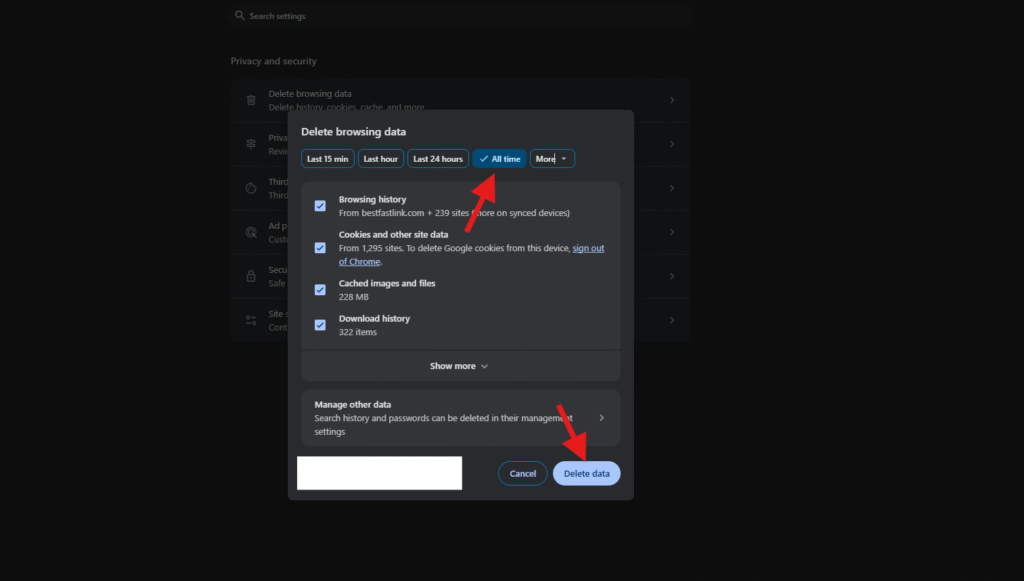
When you browse the web without your VPN, your browser (Chrome, Firefox, Edge) stores small files called cookies and cached data. These files contain records of your real location, your real IP address, and your local time zone.
Even if you connect your VPN successfully, Netflix’s website can still read these outdated, non-VPN-protected local files. When Netflix compares the real location data in your cookies with the fake location provided by your VPN’s IP address, it detects the mismatch and immediately triggers the proxy error.
How to Clear Your Data to Fix the Block
To eliminate this discrepancy, you must clear the data after connecting to the VPN or, ideally, before logging into Netflix.
A. For Netflix on a Web Browser (Desktop/Laptop)
Follow these steps for your specific browser:
| Browser | Step-by-Step Instructions |
| Chrome / Edge | 1. Click the three vertical dots (or menu) in the top right. 2. Go to More tools $\rightarrow$ Clear browsing data. 3. Set the Time Range to All time. 4. Check the boxes for Cookies and other site data and Cached images and files. 5. Click Clear data. |
| Firefox | 1. Click the three horizontal lines (or menu) in the top right. 2. Go to Settings $\rightarrow$ Privacy & Security. 3. Under Cookies and Site Data, click the Clear Data… button. 4. Ensure Cookies and Cache are both checked. |
| Quick Fix URL | To clear only Netflix-related cookies instantly, visit: netflix.com/clearcookies. This will sign you out and wipe any stored location data specific to the Netflix site. |
B. For Netflix on a Mobile App (iOS / Android)
Clearing the cache on a dedicated mobile app is slightly different than doing it in a browser:
- Android Devices:
- Go to your device’s Settings menu.
- Find Apps or Applications Manager.
- Locate and tap the Netflix app.
- Tap Storage $\rightarrow$ Clear Cache.
- (Optional but highly effective): Tap Force Stop to ensure the app is fully closed.
- iOS Devices (iPhone/iPad):iOS does not provide a direct “Clear Cache” button for individual apps. The most effective way to remove local data is to:
- Delete the Netflix app from your device.
- Reinstall the Netflix app from the App Store.
- Connect to your VPN server before logging back into Netflix.
After clearing your cache and cookies on any platform, always restart your browser or app while connected to the VPN server, then log in. This forces Netflix to read the location data from your current, secured VPN connection.
3. Use the Native App (or vice versa): If you are on the browser, try the Netflix desktop/mobile app (and vice versa). Detection methods vary slightly across platforms.
If those quick fixes don’t work, we need to dive into the core problem.
Why It’s Not Working: How Netflix Detects Your VPN
Netflix blocks VPNs to comply with strict licensing and copyright agreements with content producers. They only have the legal right to show certain movies and shows in specific countries.
Netflix uses highly sophisticated VPN detection technologies that look for “suspicious” connection patterns:
- IP Blacklisting: The primary method. Netflix maintains a massive database of IP addresses known to belong to data centers, not residential ISPs. If thousands of users connect to Netflix from the exact same server IP address in a short time, it’s flagged and added to the blacklist.
- DNS/IP Mismatch: When you use a VPN, your IP address changes, but your DNS (Domain Name System) requests should also route through the VPN’s server. If Netflix detects that your IP address is in the US, but your DNS request originates from your real ISP in Canada, the connection is blocked.
- Data Center vs. Residential IPs: Most VPNs use data center IPs. Netflix is increasingly filtering out all non-residential IP traffic, as legitimate home users rarely connect through commercial data centers.
Detailed Troubleshooting: How to Fix a VPN not working on Netflix
If the quick fixes failed, it’s time for deeper technical adjustments:
A. Check for DNS and IPv6 Leaks
A DNS or IPv6 leak is a critical failure where your VPN tunnel isn’t secure, revealing your true location.
- How to Check: Use a tool like ipleak.net. Connect your VPN and check the reported IP and DNS locations. If your real location appears, your VPN is leaking.
- The Fix:
- Disable IPv6: Most VPNs still struggle with IPv6. Go to your device’s network adapter settings and uncheck the box for Internet Protocol Version 6 (TCP/IPv6).
- Enable Kill Switch: Ensure your VPN’s Kill Switch is active. This feature will instantly cut your internet connection if the VPN tunnel drops, preventing leaks.
B. Change Your VPN Connection Protocol
Some older VPN protocols are easier for Netflix to detect. Switching protocols can disguise your traffic.
- Recommended Switch: If you are using OpenVPN, try switching to WireGuard for speed, or a dedicated Stealth/Obfuscation Mode (often called “Camouflage Mode” or “NoBorders” by providers). These modes specifically disguise VPN traffic to look like regular HTTPS browsing.
C. Use a Dedicated IP Address
A dedicated (or static) IP address is an unshared IP assigned only to you.
- Why it Works: Since you are the only user, the IP never gets flagged for “suspicious high traffic” patterns and behaves like a regular home connection, making it much harder for Netflix to blacklist. This is often an add-on service from premium VPNs.
D. Update Your VPN Software
Always ensure your VPN application is running the latest version. VPN providers constantly update their apps to incorporate new fixes for bypassing Netflix’s detection methods.
E. Contact Customer Support
A top-tier VPN will have 24/7 Live Chat support. They often know exactly which specific server IP addresses are currently working with Netflix at that moment. Ask them directly: “Which server in [Country Name] is currently optimized for Netflix?”
Final Thoughts
My own experience with this issue highlights the constant arms race between streamers and VPNs. I was once trying to watch a show from the UK while on a business trip in Asia. The VPN worked perfectly for a month, and then one morning, I got the proxy error.
Instead of panicking, I simply applied the quick fixes: cleared my cache, switched from the London server to the Manchester server, and it instantly worked again. The key takeaway? Netflix’s detection is continuous, but so are the best VPNs’ efforts to bypass it. You cannot just set and forget; you have to be ready to switch servers or protocols on occasion.
Frequently Asked Questions (Q&A)
Q: Is Netflix blocking VPNs?
A: Yes, Netflix actively blocks VPNs, but only those they can detect.
Netflix is legally required to enforce regional content licensing agreements. To do this, they employ sophisticated detection technology that scans for common VPN “signatures,” such as large groups of users connecting from the same IP address (IP Blacklisting) or mismatches between your IP address location and your DNS server location.
However, Netflix generally does not ban your account if they detect a VPN. They will simply display the “You seem to be using an unblocker or proxy” error, restricting you to their library of Netflix Originals (which they have global rights to) or completely blocking access until you turn the VPN off or fix the connection.
Q: Which VPN still works for Netflix?
A: The ability to bypass the block is an ongoing “arms race,” but premium, high-quality VPN services consistently work because they regularly update their server IP addresses to stay ahead of Netflix’s blocklists.
Based on current testing and market authority, the most reliable VPNs that consistently work for unblocking multiple Netflix regions include:
- NordVPN: Consistently ranked #1 due to its vast network, fast speeds (using its NordLynx protocol), and dedicated streaming optimization.
- ExpressVPN: Highly reliable, known for its excellent performance on mobile and ease of use, rarely failing to unblock major libraries.
- Surfshark: An excellent budget-friendly choice that works reliably and offers unlimited simultaneous connections, which is great for families.
- Proton VPN: A secure, privacy-focused option that also works well with streaming, although it may support fewer regional libraries than the others.
Key Tip: Choose a VPN that offers a 30-day money-back guarantee so you can test its ability to unblock the specific Netflix library you need before committing long-term.
Q: How to enable VPN on Netflix?
A: Enabling your VPN to access a different Netflix library is straightforward, provided you are using one of the reliable providers listed above.
Follow these simple steps:
- Choose and Subscribe to a reliable VPN service (e.g., NordVPN).
- Download and Install the VPN app on the device you plan to use for streaming (PC, phone, tablet, etc.).
- Clear your browser’s cookies and cache (especially if you’ve already tried to connect to Netflix without the VPN on). This is the critical step to remove old location data.
- Open the VPN app and connect to a server in the country whose Netflix library you want to access (e.g., connect to a U.S. server to access U.S. Netflix).
- Open the Netflix app or website. Netflix will now recognize the VPN’s IP address and display the content library associated with your connected server location.
If you encounter the error message, simply return to the VPN app, choose a different server in the same country, and repeat step 5.